Turn app screens into Google Play screenshots
Choose from 140 templates, add your app's screenshots, and make them your own with headlines and brand colours. Download the finished set for your Google Play listing.
First export free. No account needed.
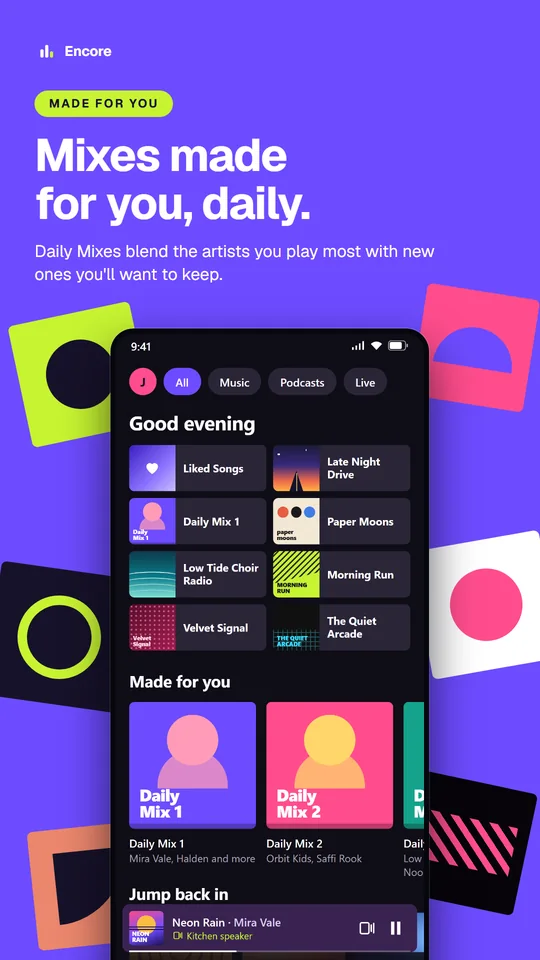
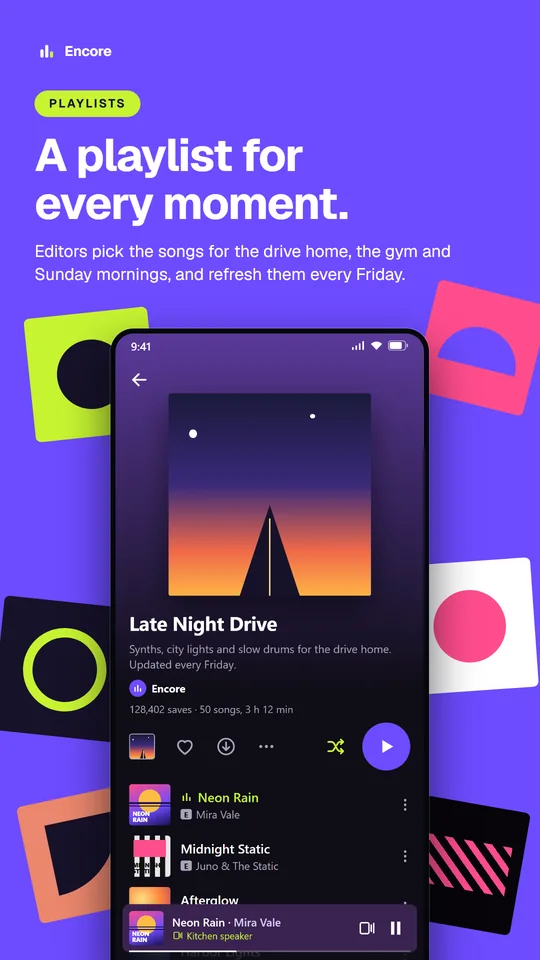
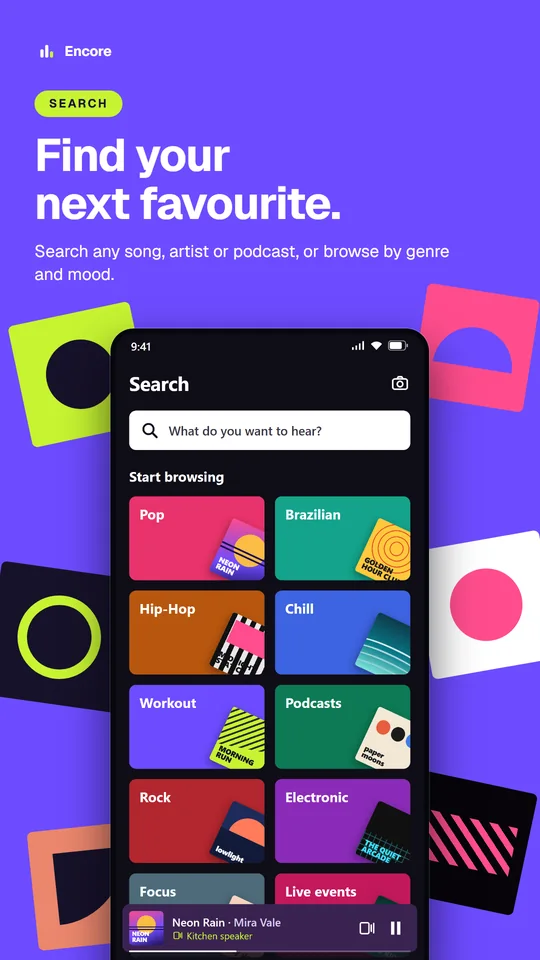
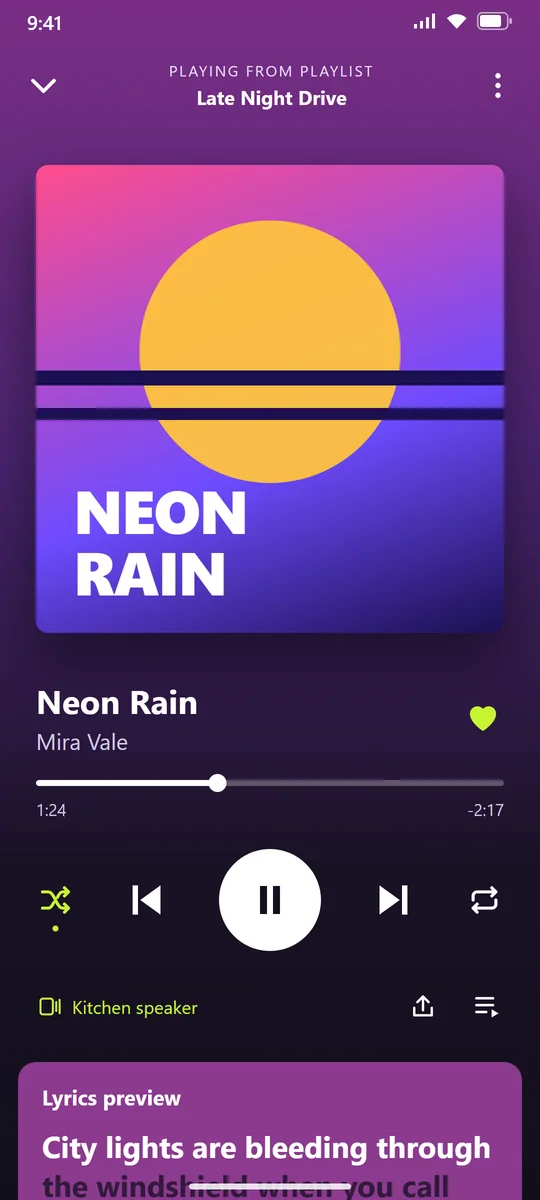
How it works
- 1
Add your screenshots
Add screenshots you already have, or capture them directly from your Android phone over USB. Choose 2 to 8 screens for your listing and put them in order.
- 2
Choose a look for your app
Pick a template for the set, write your headlines, and choose your colours. Adjust the text, images and layout on each screenshot.
- 3
Download your finished set
Get your screenshots as 1080 × 1920 PNGs in one ZIP. They're numbered in your chosen order, ready to add to your Google Play listing.
140 templates in 13 categories
Find a layout for your app, from fitness and finance to music and food. Use your own screenshots, text and colours to make it fit your brand.
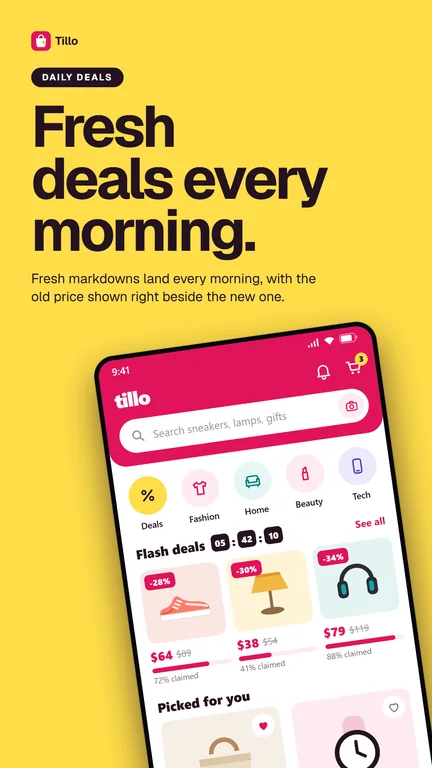
Sale posterShopping
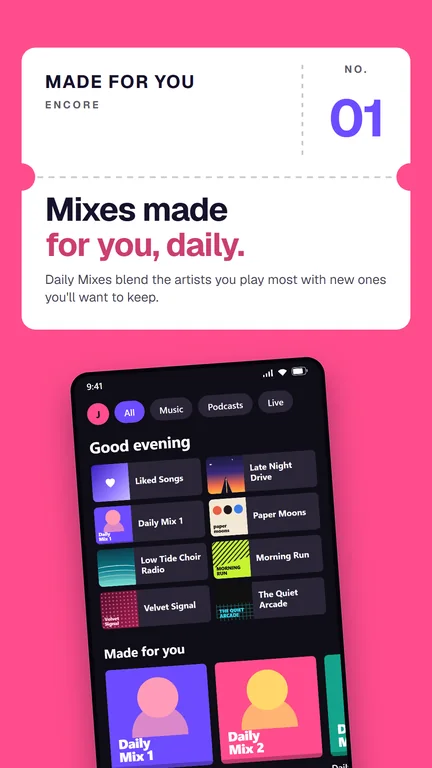
TicketMusic
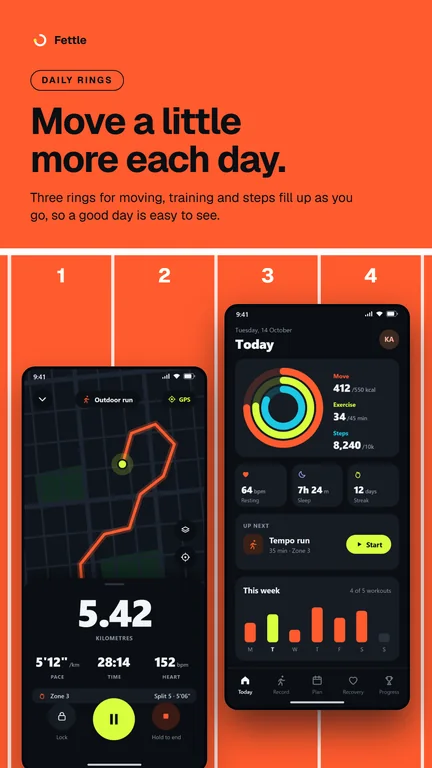
TrackHealth & Fitness
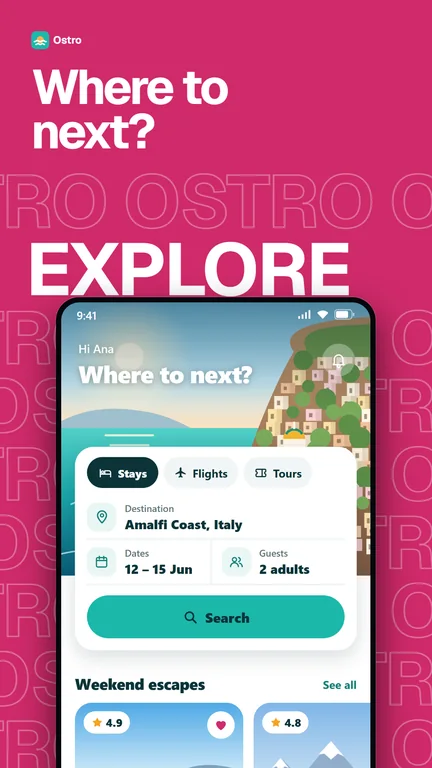
Destination wordTravel
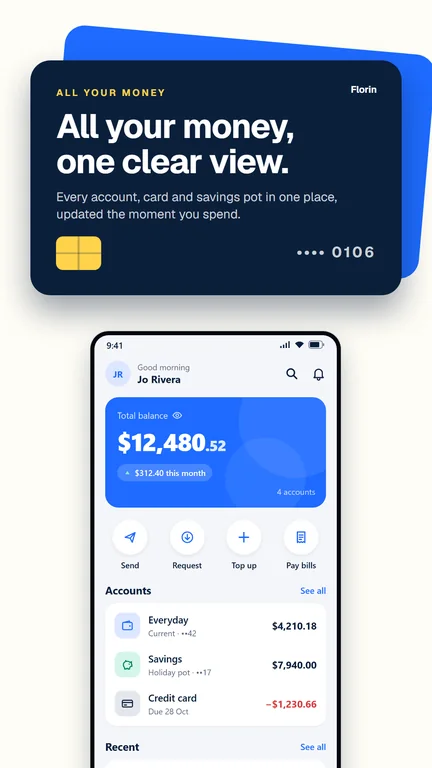
Bank cardFinance
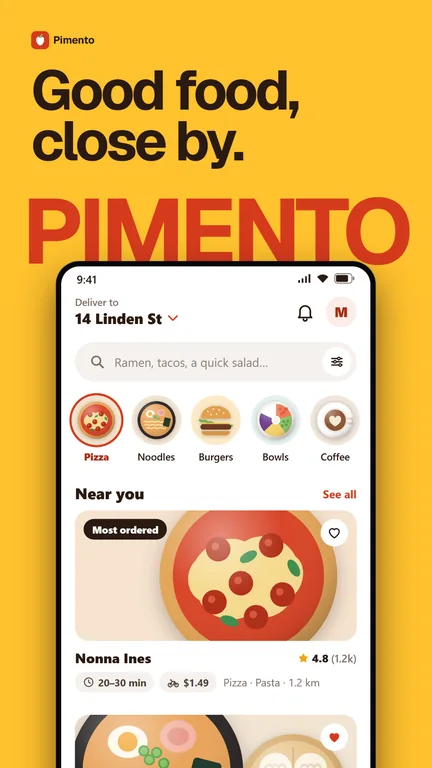
MarqueeFood & Drink
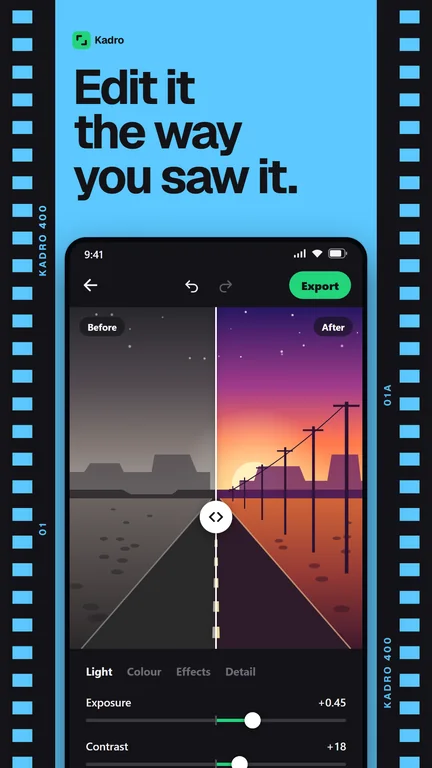
Film stripPhoto & Video
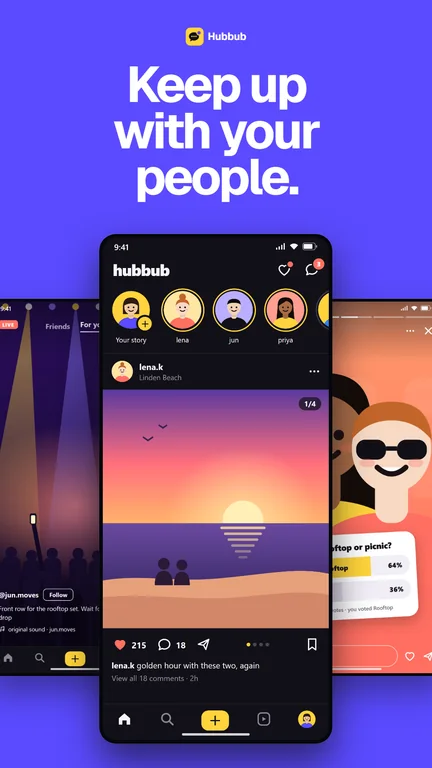
Three upSocial
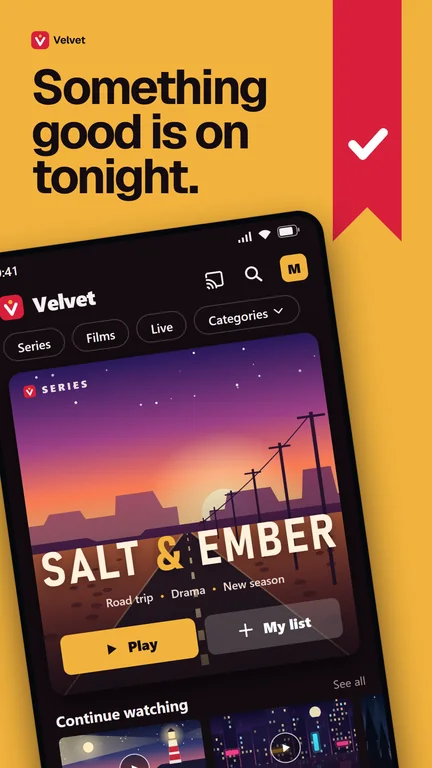
WatchlistEntertainment
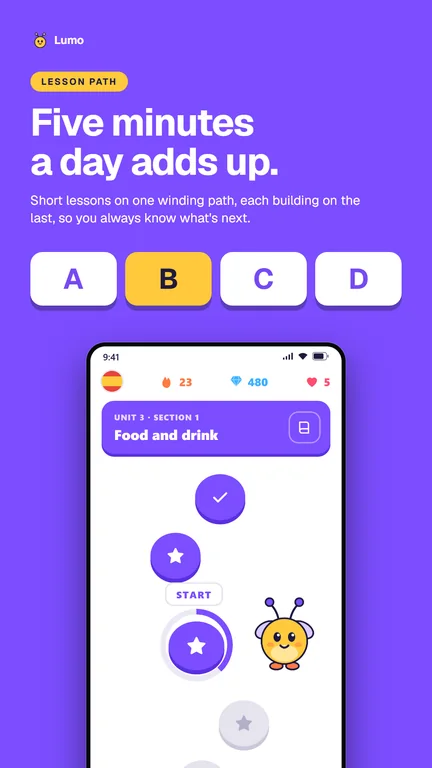
Answer buttonsEducation
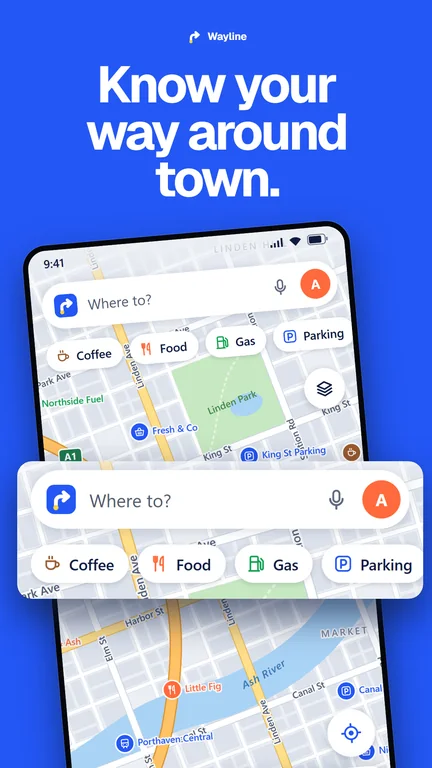
Turn cardMaps & Navigation
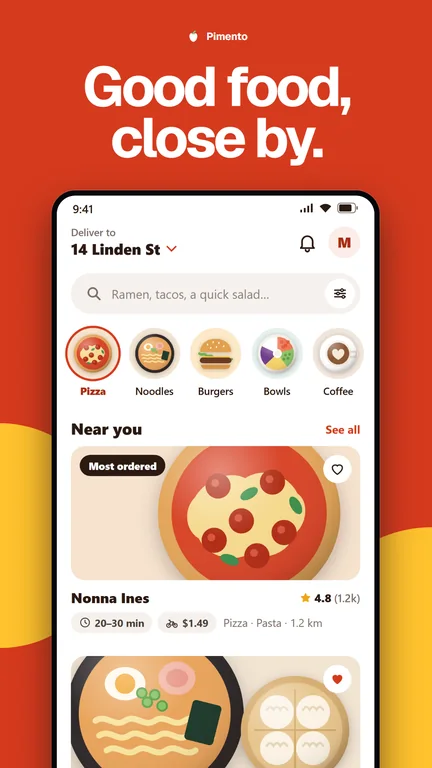
Side dishesFood & Drink
Before you start
- Do I need to connect a phone?
- No. You can add existing screenshots as PNG, JPEG or WebP files. To capture new ones over USB, connect an Android phone with USB debugging enabled. PlayKit walks you through the setup.
- Which browser should I use?
- Use PlayKit on a computer. USB capture needs Chrome or Edge; in other browsers, you can add screenshot files instead.
- Is PlayKit free?
- Your first export is free. For more exports, request a beta code from the export page. Codes are free during the beta and sent by email.
Make your first set
Start with the screens that show what your app does best. Pick a template and try it with your own screenshots.
Create screenshots